
Tool Length Offset and Cutter Radius Compensation on CNC Mills: Sizes Off After a Tool Change or Regrind? How to Set G43 and G41/G42
When sizes drift after a tool change or a regrind on a machining center or CNC milling machine, first find the direction. If the Z depth is wrong, look at tool length offset: G43/G44 and the H code. If a contour is slightly off size, look at cutter radius compensation: G41/G42 and the D code. Both hand the tool length and diameter to the offset table, so the program does not need rewriting for a tool change, and a reground, smaller cutter only needs a new radius in the table. Radius compensation also has three usage rules, and starting it on an arc block is one of the most common sources of alarms.
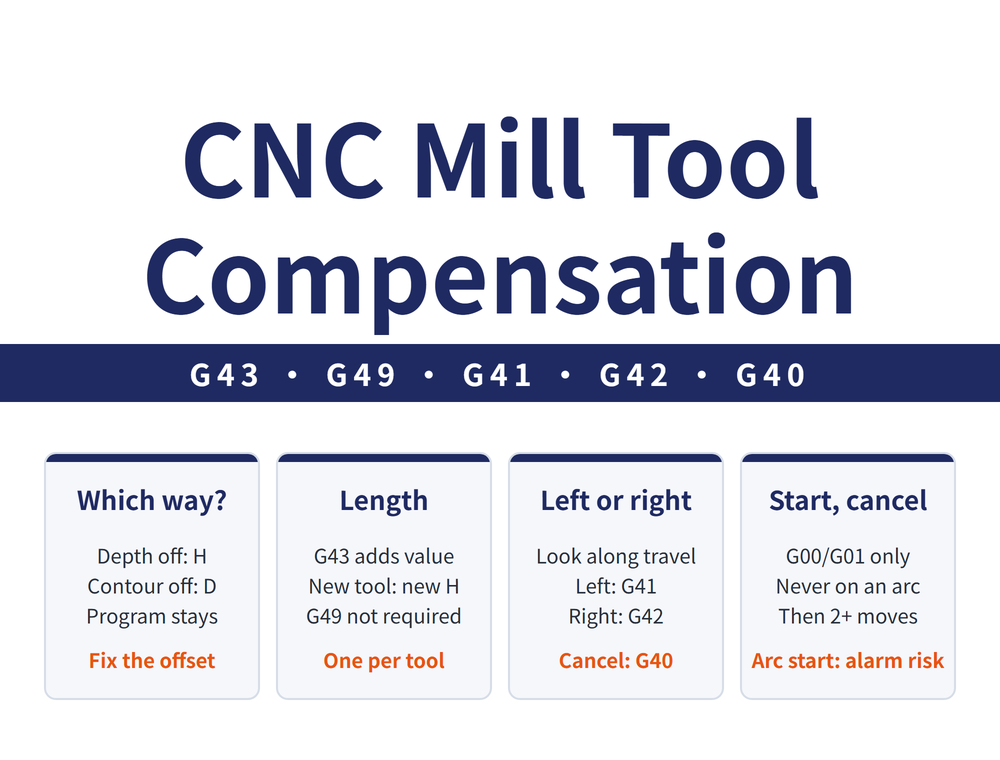
1. Find the direction first: Z depth off means length offset, contour off means radius compensation
Each of the two compensations handles one direction. The values sit in the offset table and are called with different codes:
| Compensation | What it corrects | Commands | Value called by |
|---|---|---|---|
| Tool length offset | The Z difference caused by each tool having a different length | G43/G44, cancelled by G49 | H code |
| Cutter radius compensation | The gap between tool center and contour caused by the tool radius (in the XY plane) | G41/G42, cancelled by G40 | D code |
Where the workpiece sits on the table is handled separately by G54 to G59; that is a matter of finding the work coordinate origin, see Edge Finders: How to Choose and Use Mechanical, Electronic and 3D Types. Why a CNC can calculate compensation right at the machine is covered in What Is CNC: From the Manual Machine Tool to Numerical Control.
2. Tool length offset: every tool has a different Z
Once the work origin is set, X and Y do not change when tools are changed (the tool is located by the spindle taper), but Z is different for every tool.
Example: a 250 mm long drill makes a 50 mm deep hole, then a 350 mm long tap cuts a 45 mm deep thread. If both tools start from the same Z zero, the tap, being longer than the drill, will tap too deep and damage both the tool and the workpiece.
With tool length offset set, the control automatically adds the tap's length to the Z zero when the tap is called, so the depth comes out right.
| Command | Meaning |
|---|---|
| G43 | Adds the offset value to the end-point coordinate of the offset axis |
| G44 | Subtracts the offset value from that coordinate |
| G49 | Cancels tool length offset (H00 also works) |
The H code (H00 to H99) selects the offset number, which points to a length value in the offset table. The plane command decides which axis is offset: G17 offsets Z, G18 offsets Y and G19 offsets X. G43, G44 and G49 stay in effect once given, until another command of the same group replaces them.
⚠ G49 is not strictly required: each tool has its own length offset, and calling the new tool's offset number with G43 (or G44) H__ at a tool change automatically cancels the previous tool's offset. How the magazine changes tools is covered in ATC and Tool Magazines: Types, Specifications and What to Check.
3. Working out tool length offset: two examples
Example 1: G43 Z56 H05, with 16 stored in H05 → end point Z = 56 + 16 = 72 mm
Example 2: H01 holds 5.0, H02 holds 10.0
G90 G43 Z100.0 H01 → Z reaches 105.0
G90 G43 Z100.0 H02 → Z reaches 110.0
In example 2 the Z value is 100.0 both times; changing only the H code changes where the tool ends up (G90 is the absolute coordinate command). So after a tool change, the program only needs to call that tool's own H code.
4. How to set the length offset value: actual tool length, or the distance from tool tip to work origin
There are two ways to set the value, and the choice decides how the tools are managed:
| Item | Actual tool length | Z distance from tool tip to work origin |
|---|---|---|
| What goes in | Tool length measured on a tool presetter | How far the tool tip travels as the spindle moves from machine Z zero to the work origin |
| The value | The length of the tool itself | Always negative, and large |
| Next workpiece | No change for the same tool | Must be set again |
| Measuring | On a presetter off the machine, so no machine time is used | No presetter measurement |
| Suits | Tools reused across workpieces | One operator with no time to measure tool lengths |
Many large machining shops manage tools by actual tool length: give each tool a record and a tag showing its length and radius, so a tool taken out because the magazine is full can be refitted by keying in the tag values, without measuring again.
Another method works from a reference tool: one tool is chosen as the reference, and every other tool stores how much longer or shorter it is. All values are relative to that reference tool, so if the reference tool changes, every tool's value has to be worked out again.
5. Cutter radius compensation: program the contour, enter the actual diameter
In contour machining the control drives the path of the tool center, while the drawing defines the workpiece contour; the two are one tool radius apart. Without radius compensation there are only two ways to go:
| Approach | Result |
|---|---|
| Program the contour directly | The tool center follows the contour, so the part is bound to come out smaller than the drawing |
| Work out the tool center path yourself | Any new tool, regrind, material or stock allowance means recalculating and rewriting |
With radius compensation the program follows the drawing contour only, G41/G42 tells the control which side of the contour the tool runs on, and the control works out the offset itself. Even when the program comes from CAD/CAM (computer-aided design and manufacturing) software, slight tool wear or different stock for each step only needs a change in the compensation value.
| Situation | What to do |
|---|---|
| Wear, regrind or a new tool changes the diameter | Leave the program alone; change only the radius in the offset table |
| One tool runs roughing, semi-finishing and finishing | Enlarge the value on purpose to leave stock, then reduce it step by step to the actual radius |
📌 Fill in the offset table from the actual cutter diameter, not the nominal one. How roughing and finishing switch through the compensation value is covered in Planning the Cutting Sequence: Roughing, Semi-Finishing and Finishing.
6. G41 or G42: look along the direction of tool travel
The rule: look along the direction the tool is moving (imagine the workpiece standing still) and see which side of the workpiece contour the tool center is on.
| Command | Meaning |
|---|---|
| G41 | Left compensation: tool center on the left of the contour |
| G42 | Right compensation: tool center on the right of the contour |
| G40 | Cancels radius compensation; G41 and G42 stop at once |
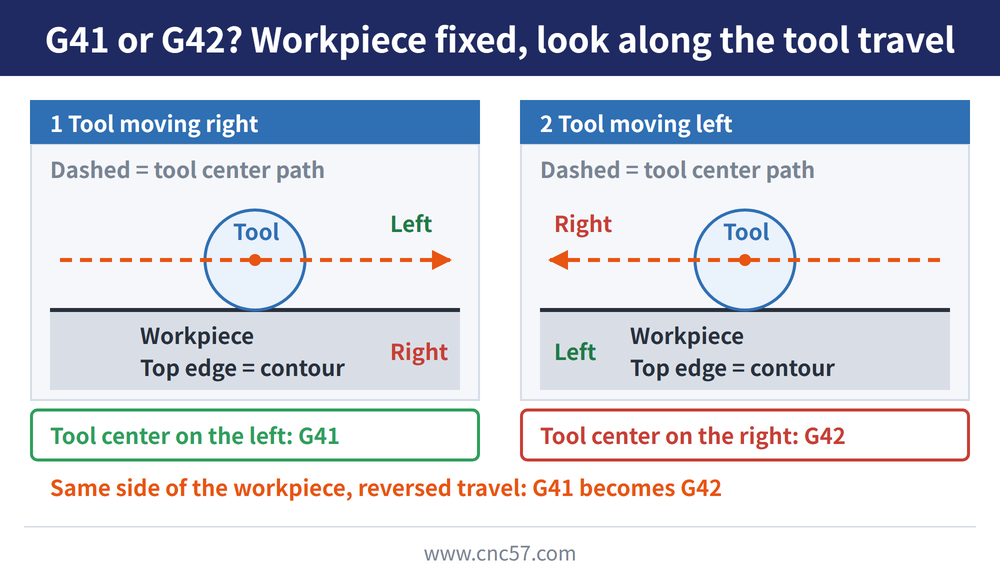
With the tool on the same side of the workpiece, reversing the direction of travel turns G41 into G42, so check which way the tool is going before judging left or right. The value sits in the offset table and is selected with a D code (D00 to D99); G40, G41 and G42 stay in effect once given and replace one another.
7. The four steps of radius compensation
| Step | What happens | Allowed commands |
|---|---|---|
| 1 Set the value | Before the program starts, enter the tool radius in the offset table | - |
| 2 Start compensation | The tool approaches; its end point lies one offset value out from the contour start, square to the contour | G00 or G01 only |
| 3 Compensation active | The tool center stays one offset value away from the programmed path | G00, G01, G02, G03 |
| 4 Cancel compensation | Cancelled on the way out | G00 or G01 only |
In a program the skeleton looks like this (__ is a value that depends on the workpiece, not a fixed number):
(Step 1: fill D__ in the offset table with the tool radius first)
G41 (or G42) G00/G01 X__ Y__ D__ ← Step 2 start
G01/G02/G03 X__ Y__ ... (at least two blocks) ← Step 3 active
G40 G00/G01 X__ Y__ ← Step 4 cancel
Controls from different makers are written differently; follow the maker's manual for your control for the exact format. Other compensation-related commands likewise follow the maker's manual.
8. Three usage rules for radius compensation
| Rule | Detail |
|---|---|
| Never start or cancel on an arc | Start and cancel with G00 or G01 only, never G02 or G03 |
| At least two plane moves after the start | With fewer than two blocks carrying a plane move, compensation cannot be set up |
| Cancel before changing planes | Switch G17 (XY), G18 (ZX) or G19 (YZ) only with compensation cancelled |
Starting compensation on an arc block is one of the most common sources of alarms. The second rule exists because the control reads the next block ahead to work out how two blocks join; almost all CNC machine tools today use this kind of compensation, which is why the program can follow the workpiece contour exactly.
A lathe uses the same G41/G42, but it compensates something different (the tool nose radius and tool tip number); how the lathe offset table is filled in is covered in Tool Nose Radius Compensation on CNC Lathes: Why Tapers and Arcs Come Out Off, and How to Set G41/G42 and Tool Offsets.
9. Frequently Asked Questions (FAQ)
Q: After changing a tool the depth is wrong. What should I change?
Change that tool's length offset value, the slot its H code points to; the program stays as it is. At a tool change, call the new tool's own offset number with G43 (or G44) H__.
Q: How do I tell G41 from G42?
Look along the direction of tool travel (imagine the workpiece standing still): tool center on the left of the contour is G41, on the right is G42; cancel with G40 when done.
Q: The cutter is smaller after a regrind. Do I have to rewrite the program?
No, just change the radius in the offset table to the actual value after regrinding. Compensation only fixes size; what a regrind takes away that it cannot win back is covered in Is Tool Regrinding and Recoating Worth It? When to Resharpen and When to Replace.
Q: Why will radius compensation not set up, or why does it alarm?
Starting compensation on an arc block is one of the most common sources of alarms; start and cancel with G00 or G01 only. Also, at least two blocks with a plane move must follow the start, and compensation must be cancelled before switching G17/G18/G19.
This article is part of Milling Toolpaths: The Complete Guide - Roughing Strategy, Where to Plunge, and Choosing a Finishing Pattern; that guide shows how the whole topic fits together.
Published: 2026-10-28 | Last updated: 2026-10-28